Showing posts with label Home. Show all posts

5 top tips for computer beginners.

0
5 top tips for computer beginners:


1) Install AdBlock on your browser to get rid of annoying ads!

    Links for different browsers are as follows:
        Firefox:   
https://addons.mozilla.org/en-US/firefox/addon/adblock-plus/
        Google Chrome:   https://chrome.google.com/webstore/detail/adblock-plus/cfhdojbkjhnklbpkdaibdccddilifddb
        Safari:  
https://adblockplus.org/category/adblock-plus-safari/
        Internet Explorer:   
https://adblockplus.org/.../adblock-plus-12-for-internet-explorer-released
 

2) If you have accidentally close a tab....
    Then use Command+ Shift + T to re-open it!

    On PC, use Ctrl + Shift + T

3) Use Ctrl + Shift + N (PC) or Command + Shift +N (Mac) for private browsing on Chrome "Incognito".
    Chrome does not keep the history of the websites that you browse incognito (useful for browsing "certain" websites)

    Use Ctrl + Shift + P (PC) or Command + Shift +P (Mac) for Firefox and Internet Explorer (IE) [who uses IE these days, anyway?]

    Tip: Your company might still store the data.

4) Use Space to go down and use Shift+Space to go up when browsing the web!

5) Most of your computer problems will be resolved by restarting it or turning it off and back on! This will reset your computer's state and restart everything from the beginning.
Continue reading →

How to Hide Selected Drives in PC

0


How to Hide Selected Drives in PC?

Do you want to Hide specific drives (partitions) like C, D, E, F, and DVD, Bluray disks in PC?

If you would like to hide any of the disk drives inside Windows Explorer, there’s a tiny freeware utility called NoDrives Manager that will help.

NoDrives Manager is a simple, free tool for hiding Windows logical drives by modifying the registry. The hidden drives are still accessible but they are not visible in the Windows Explorer.

Download NoDrives utility software click bellow button and copy this link location and past this link addres in the any web browser URL bar, enter “enterkey” and download software.

Open the NoDrives utility, select one or more drive letters (like C: or Z:) that should be kept hidden and save the changes. 

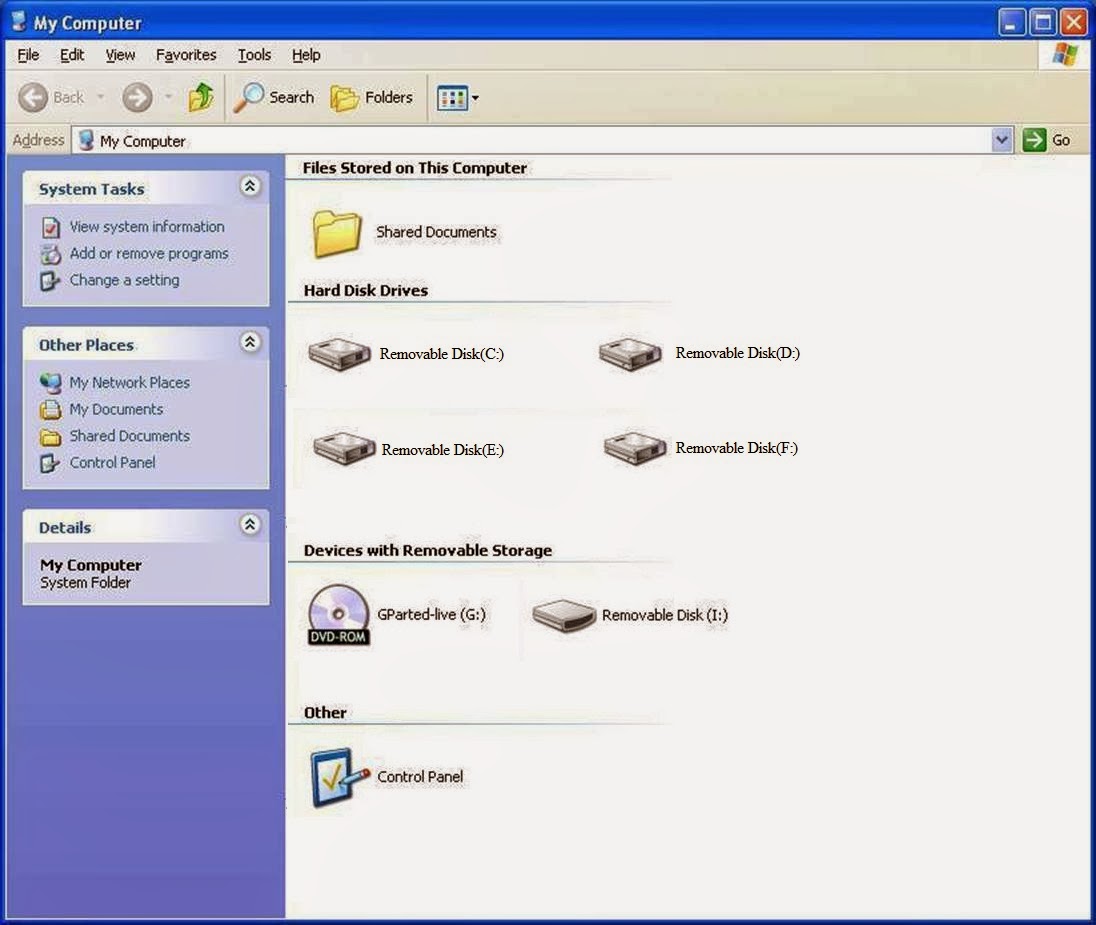
Before Windows Explorer

The next time you restart your Windows computer, the selected drives will no longer be available inside Windows Explorer. 


This can also be used for hiding the CD or DVD drives attached to your computer.

Internally, the tool simply modifies the Windows registry to make the selected drive invisible inside Windows Explorer though advanced users may still access the drive and its files through the Command Prompt.

Later, if you wish to toggle the visibility of these hidden drives, just open the NoDrives Manager program again, deselect the hidden drives and save the changes. Please do note that you will either have to restart your computer or relaunch the explorer.exe process for the changes to be applied.

NoDrives should work with all recent editions of Windows (both 32-bit and 64-bit are supported).


Hope this helps you.
Dear Visitor your comment make us happy, so don't forget to leave a Comment.
Continue reading →

How to see who views your Facebook Profile.

1
How to see who views your Facebook Profile:

1. Right click on your Facebook page. whoever you are logged in as is who you will see is viewing your profile (better result use google chrome web browser.).


2. Click on "view page source".


3. This will bring up all of the code that facebook puts on your page.
4. Press CTRL+F  to search in the text.
5. Search for "FriendsList".


6. This will take you to a list on numbers(people) that have viewed your profile in the last 24 hours.
7. Copy one of the numbers. They are listed to descending order according to views.
8. Paste the number after  www.facebook.com/


Continue reading →

Save your gmail contacts in your pc or laptop

0

Save your gmail contacts in your pc or laptop using the steps below.

·         1. Click here to access your Gmail contacts.


·         2. Click on More in the top menu, and then click on Export in the menu that appears.


·         3. Choose which contacts you want to download.


     4. Click the Export button to download your contacts. Follow the instructions on your screen and save the file to your computer. By default the file will be named 'google.csv'.


Hope this helps you.
Dear Visitor your comment make us happy, so don't forget to leave a Comment.

Continue reading →

How to set a password for BSNL Modem.

0

How to set a password for BSNL Modem.

1.Go to any web browser.

2.First logon to website 192.168.1.1  in URL bar after  enter “Enter key”.

                The bellow page is open.
                Enter User name and Password.
By default the username and password is admin/admin
For Example:
Username: admin
Password:  *****

3. After click login button.

4. Now click o the Wireless link
Under the Wireless link you will see Security link, click on Security link

5. So you will see some more fields to be entered
Select SSD                                           : UTStream
Network Authentication                      : Open
WEP Encreption                                 : Enabled
Encreption Strength                            : 64-bit / 128 bit
Currect Network Key                         : 1
Network key 1                                    : NETLOJAVA1234   
Network key should be in 13 Hexa digits i.e. (A-Z)(0-9)
For example : ABCDEFGHZRQ98, letters are case sensitive.
After you have entered this settings click on save/applybutton.
 
6. And here you go, your BSNL WiFi network is safe and protected.

7.Now go to your Network Connections and search for a wireless netwrok, you will see your name that you entered in SSID field, click on that name enter the 13 digit key and relax and surf the protected and problem free internet.


Click Connect button.


Hope this helps you.
Dear Visitor your comment make us happy, so don't forget to leave a Comment.

Continue reading →

How to share wifi hotspot internet from Windows

0


How to share wifi hotspot internet from Windows

Require:
- Microsoft Virtual WiFi Miniport Adapter enabled.
- Your computer is connected to internet

Instruction:
- Share your internet connection to Microsoft Virtual WiFi Miniport Adapter.
- Run command prompt as admin
- Enable Microsoft virtual wifi adapter by typing below command:

                          netsh wlan set hostednetwork mode=allow ssid=name key=key


where the netlojava is name of your hotspot, netlojava is the password of your hotspot.

- Start the network by typing below command

                                           netsh wlan start hostednetwork


- To stop sharing your hotspot just change command start to stop.


Hope this helps you.
Dear Visitor your comment make us happy, so don't forget to leave a Comment.
Continue reading →

Recent Posts